GL Communications Inc.


Home  >  Analysis (T1/E1/T3/E3/OC-3/OC-12/STM-1/STM-4)  >  Software Applications  >  Call & Signaling Analysis


Voice call mangement utility


  Download Voice Call Management Utility User's Guide

  Download Voice Call Management Utility Product Brochure

Managing recorded voice calls is essential especially when recording for extended periods of time. It is also easy to manipulate the recorded voice calls by filtering the calls choosing either called or calling number, length of call etc GL's Call Management Utility (CMU), is an application coupled with the GL's T1/E1 Call Capture and Analysis (CCA), that provides all the necessary management tools to perform function of recording voice calls. Call records are immediately generated, indexed, and displayed once a voice recording over T1 or E1 lines is completed by the CCA.

Recorded calls can be further filtered or played back or analyzed as required. All relevant information associated with each recorded call is included such as, timestamp, timeslot, length of call, and size of file (to name a few) . The user may configure a different filter for each monitoring instance, hence providing added flexibility. The user has the option to display all Active Calls (shows real-time capturing information) or a user-defined filtered list of all Completed Calls.

Audio playback of completed and captured calls is easily accomplished with the CMU. A captured call can instantly be played to the PC speakers, either the East direction, or the West direction, or both directions simultaneously. The user may also display the captured call to a waveform viewer for further analysis.

Using the CMU post-processing feature, one can display call records associated with a directory of recently captured voice files. Individual Call Records are displayed for each file and the user has the same fundamental capability to play each voice file.


Main Features

  • Complete Call Records for each captured file.
  • Filter/Search for specific calls.
  • Post Process capability to view the directory of captured files, log files and instances.
  • Voice playback including streaming of audio over TCP/IP and playback of either East, West or both directions simultaneously.
  • Real-time Voice playback (during active call) and post-processing Voice playback (after call is completed).
  • Statistics of all Call Records.
  • Complete Automated T1 and E1 Voice Logger


Overview

The CMU provides the mechanism to easily view an entire directory of captured voice files. These voice files include any type of traffic, including full duplex conversations, when used in conjunction with the GL T1/E1 Analysis Call Capture and Analysis application. As a fundamental capability within the Call Management Utility, the user can easily configure filtering for real-time call record capture as well as post-processing display. During real-time processing, the user may configure a different filter for each monitoring instance, hence providing added flexibility.

Screen Shot of Filter Setup

The CMU's Post Processing capability allows the user to import a previously saved log file, or an instance, or the captured files from the call capture directory. When importing, the user has the option of adding a filter to the search criteria. Thus, the user may import all voice files or import only those that adhere to the search criteria. Any call can be viewed, played if the captured file still exists in the call capture directory, and can be edited.

The CMU will automatically sort and display all call records and produce the statistics associated with these imported voice files. The user has the option for importing based on CAS or PRI ISDN previously captured voice files. Selecting CAS or PRI ISDN is directly associated with the method for saving these voice files using the GL T1/E1 Call Capture and Analysis application.

Screen Shot of Post Process in CMU

Used in conjunction with the GL T1/E1 Call Capture and Analysis application, the GL Call Management Utility looks at the user-defined directory and pulls all voice files, in real-time, for generating the call records associated with an automated T1/E1 Voice Logger. Each call record may be viewed and the voice files (either West, East, or both directions) can be played instantly to the PC sound device.

Generating complete call records with filtering and voice playback is a necessity when capturing voice files for extended periods of time. The GL Call Management Utility, coupled with the GL T1/E1 Call Capture and Analysis application, provides the necessary Call Records with post-processing voice playback. The Call Management Utility, configured to automatically capture all voice files as they are generated in a user-defined directory, displays all relevant information associated with the call.

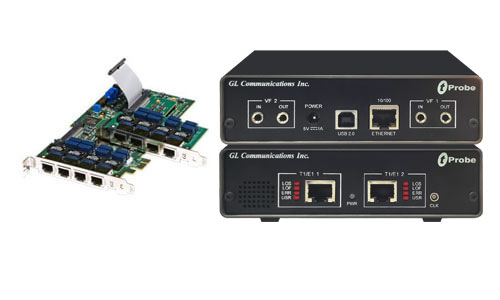
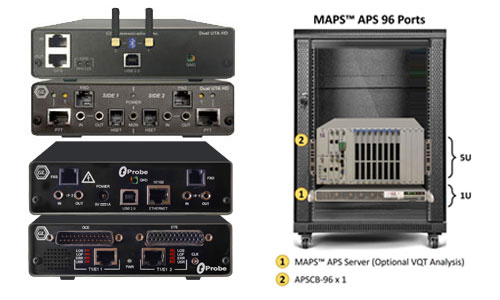
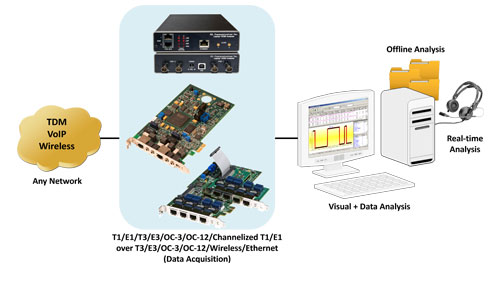
The GL Analysis T1/E1 PC boards allow easy bridging/monitoring connections to a T1, E1, T3, OC-3, or STM-1 interface. This allows for automatically capturing calls and generating call records based on the call control of choice (PRI ISDN or CAS signaling). All information associated with the call is displayed in the call records.

Playback of the captured calls is easily accomplished with the Call Management Utility. A call that is currently active (real-time) or a completed call (post processing) can instantly be played to the PC speakers, either the East, West, or both directions simultaneously. The voice files do not need to be co-located on the same PC as the Call Management Utility, the Call Management Utility will automatically stream the audio over the established TCP/IP connection. The user may also display the captured call to a waveform viewer for further analysis.

Using the Call Management Utility post-processing feature, one can display call records associated with a directory of recently captured voice files. Searching and filtering on all available information (called number, calling number, timestamp, length of call) can easily be done with the Call Management Utility, results displayed to a separate screen. Individual Call Records are displayed for each file and the user has the same fundamental capability to play each voice file.

Any call can be viewed, played, and even edited. Shown below is a captured call with both directions shown.


Buyer's Guide:

Please Note: The XX in the Item No. refers to the hardware platform, listed at the bottom of the Buyer's Guide, which the software will be running on. Therefore, XX can either be HDT, HDE, HUT, HUE, UTA or UEA depending upon the hardware.

Item No. Item Description
CM0031 Call Management Utility
  Related Software
XX030 T1 or E1 Call Capture and Analysis Software
SA026 Adobe Audition Sound File Viewing and Editing Software
SA048 Goldwave Software


 Back to Call & Signaling Analysis Index Page


Home Page Sitemap Global Presence Email