Real-Time Multi-Channel Audio Bridge
Real-Time Multi-Channel Audio Bridge application is included with T1 E1 Basic Software
Overview
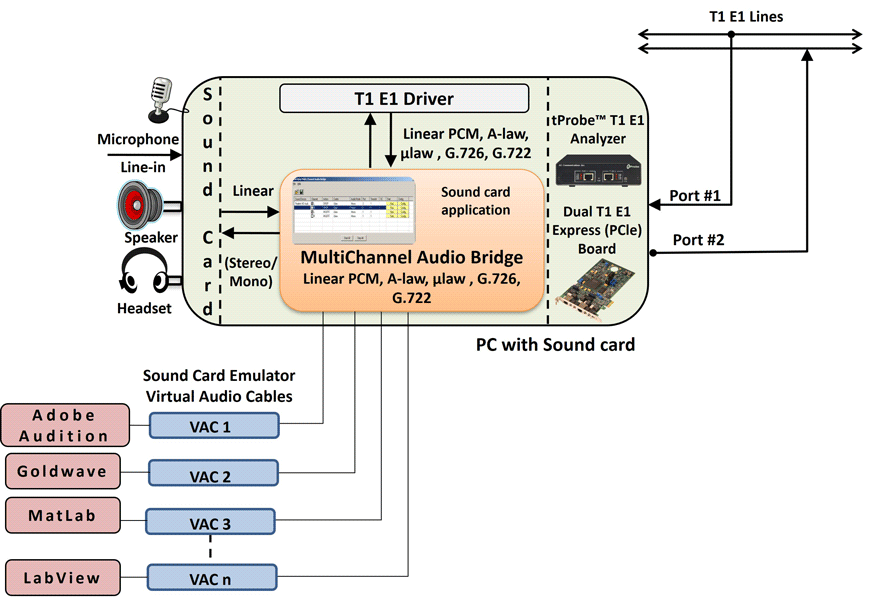
The Real-Time Multi-Channel Audio Bridge has the ability to send and receive audio between a sound card and T1 E1 timeslots. Real-Time Multi-Channel Audio Bridge application provides a bridge between T1 E1 timeslots and single or multichannel sound card(s).
The application allows user to insert speech onto T1 E1 timeslots using the PC microphone.
Also, listen to speech on T1 E1 timeslots using PC speakers or Headphones. This application is available as a part of basic applications with all T1 E1 analyzers.
This powerful optional application can also interwork with other "sound card aware" applications like Goldwave, Cool Edit, Adobe Audition, Audacity, Matlab, LabView and many others. In this case, third party "virtual sound card" software is required, e.g. VAC (Virtual Audio Cable).
In addition, as shown in the diagram, linear PCM can be converted to G.726 (40 kbps, 32 kbps, 24 kbps, or 16 kbps), and G.722 (64 kbps) for direct insertion into T1 E1 timeslots, instead of the usual u-law or A-law.
Main Features
- Insert speech on T1 E1 lines using microphone connected to the sound card i.e., stream audio to channel/subchannel from the sound card
- Listen/Drop speech on T1 E1 lines using PC speakers or Headphone using sound card - Stream audio from channel/subchannel to sound card
- Supported codecs are A-law, Mu-law, 16 k Linear PCM, G.726 40 Kbps, 32 Kbps, 24 Kbps, and 16 Kbps data rates, G.722
- Supported codecs data rates are - a-law, µ-law, 16-bit PCM (Intel), 16-bit PCM (Motorola), MS Wave, G.726 (40 Kbps, 32 Kbps, 24 Kbps, and 16 Kbps), and 14-bit 16 KHz G.722 (64 kbps)
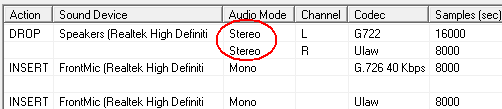
- Mono and Stereo audio modes supported
- Configure Drop and Insert, codec type, Mono/Stereo Audio Mode, port, Channel, Subchannel for a sound device
- Automatic detection of sound devices including Virtual Audio Cable (VAC)
Applications
- Audio editing applications like Gold Wave, Adobe Audition that normally send or receive audio streams to /from a sound card can be directed to timeslots on GL's T1 E1 cards
- Real-time transmit streaming from sound card and viewing of receiving stream
- Trouble shoot audio problems on T1 E1 timeslots
- Playback and record mono or stereo signals with audio editing applications directly from T1 E1
- Audio editing features/ special effects such as noise reduction, delay, echo, fade, equalization can be performed with sound aware programs
- Supports non-contiguous timeslots for performing Drop and Insert actions
Drop (to PC sound card) & Insert (from PC sound card) Actions
The audio signals from selected T1 E1 channels can be dropped on the Left and Right channels of the PC sound card. Similarly, the audio signals from the PC sound card can be inserted on the selected T1 E1 channels.
Mono and Stereo Modes
In Mono mode (Ex: intercom, telephone), all the audio input signals are mixed together and routed through Left audio channel. By default, audio mode is set to Mono.
In Stereo mode (Ex: radio – multiple sources) utilizes two independent audio signal channels, and the input heard through speakers will be an apparent image of the original sound source. In this case, both L (Left) and R (Right) channels carry audio signals.
Codec Selection
16-Bits Linear PCM codec with compatible bit rates and audio sampling frequencies can support up to 8 audio channels. LPCM encodes a single (mono) sound channel and two channels (stereo) is the most common format.
In both A-Law and Mu-Law PCM (64kbps), 8 bits are required to represent each sample. It can be seen that PCM operates at a rate of: 8 bits/sample * 8000 samples/sec = 64000 (64K) Bits Per Second.
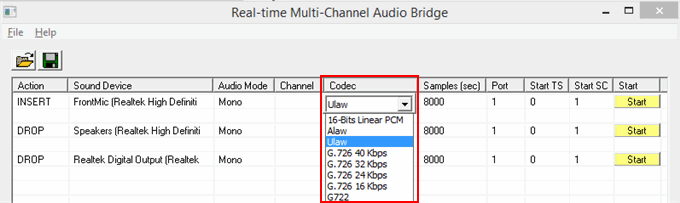
G.726 is a speech codec standard covering the transmission of voice at rates of 16, 24, 32, and 40 kbit/s. The four bit rates associated with G.726 are often referred to by the bit size of a sample, which are 2-bits G726_16 (16kbps), 3-bits G726_24 (24kbps), 4-bits G726_32 (32kbps), and 5-bits G726_40 (40kbps) respectively. G.726 compresses by converting between linear, A-law or -Law PCM and 40, 32, 24 or 16 kbps.
Now, GL’s Real-Time Multi-Channel Audio Bridge application supports G.722 is an ITU-T standard 7 kHz wideband speech codec operating at 64 kbit/s. G.722 sample audio data at a rate of 16 kHz (using 14 bits), double that of traditional telephony interfaces, which results in superior audio quality and clarity.
Timeslots Selection
Card Number & Timeslots
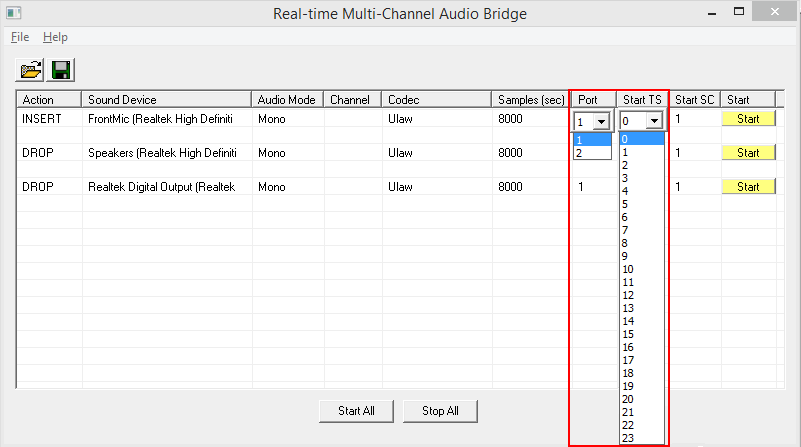
In a Dual T1 E1 Card, card # 1 and card# 2 are available cards for test. Normally, if card #1 is chosen for Drop then the opposite card, i.e., card #2 is chosen for Insert or vice-versa. Supports non-contiguous timeslots for performing Drop and Insert actions. Timeslots 0 to 23 for T1 and 0 to 31 for E1 are available for testing.
Subchannels
The data may be transmitted on any of the user-defined bits (contiguous only), in which case, corresponding DS0 bits under Subchannels 8-56 kbps pane must be selected.
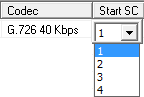
Depending on the codec type, the number of subchannels can be selected according to the table below. Each pipe 8 - 56 kbps can be comprised only from the contiguous subchannels. For example for 32 kbps pipe the following sub channel selections are valid 1-4,2-5, 3-6, 4-7. On the other hand, selecting subchannels 1, 2, 4 and 5 for 32 kbps is invalid: the total bandwidth is 32 kbps for these four selected subchannels, however they are not contiguous.
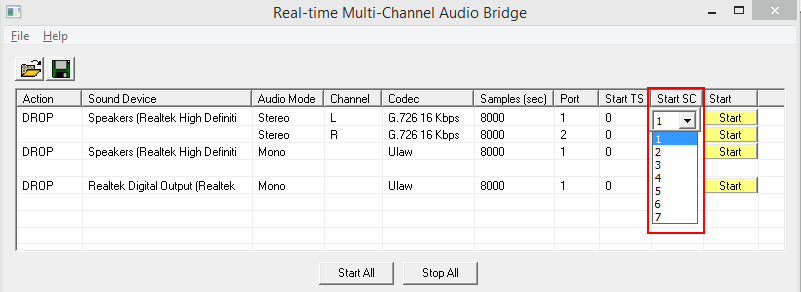
| Example | Example Explanation |
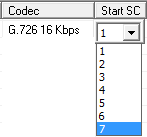 |
7 pipes 16 kbps each are specified. Possible pipes are 1-2, 2-3, 3-4, 4-5, 5-6, 6-7, 7-8 |
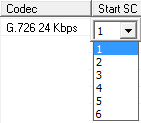 |
6 pipes of 24 kbps Possibilities - First pipe 1-3 subchannels, second 2-4 subchannels , third 3-5, and so on |
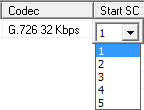 |
5 pipes of 32 kbps; Possibilities - First 1-4 subchannels, second 2-5 subchannels, third 3-6, and so on |
 ec ec |
4 pipes of 40 kbps; Possibilities First 1-5 subchannels, 2-6 subchannels, and so on. |
Buyer's Guide
Please Note: The XX in the Item No. refers to the hardware platform, listed at the bottom of the Buyer's Guide, which the software will be running on. Therefore, XX can either be ETA or EEA (Octal/Quad Boards), PTA or PEA (tProbe Units), XUT or XUE (Dual PCIe Express) depending upon the hardware.
| Item No. | Item Description |
| XX017 | Real-Time Multi-Channel Audio Bridge |
| Related Software | |
|---|---|
| XX020 | Record and Playback of Files |
| XX051 | Synchronous Trunk Record Playback |
| XX051 | Synchronous Trunk Record Playback |
| XX031 | Enhanced T1 E1 Call Capture/Analysis Software |
| SA026 | Adobe Audition Software |
| SA048 | Goldwave Software |
| SA021 | File Edit Software |
| Related Hardware | |
| PTE001 | tProbe™ Dual T1 E1 Laptop Analyzer with Basic Analyzer Software |
| FTE001 | QuadXpress T1 E1 Main Board (Quad Port - requires additional licenses) |
| ETE001 | OctalXpress T1 E1 Main Board plus Daughter Board (Octal Port - requires additional licenses) |
| XTE001 | Dual T1 E1 Express (PCIe) Boards (requires additional licenses) |
| Brochures |
| Real-Time Multi-Channel Audio Bridge - Brochure |
| Presentations |
| T1 E1 Analyzer - Special Applications - Presentation |
 Back to List of T1 E1 Basic and Optional Applications Index Page